Troubleshooting Connections to Arduino Nanos
USB Driver Problems
Official Arduino Nanos use the FT232RL USB interface chip. Most Arduino Nano clones use the CH340 USB interface chip.
Windows 10
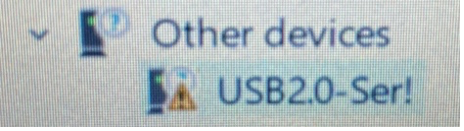
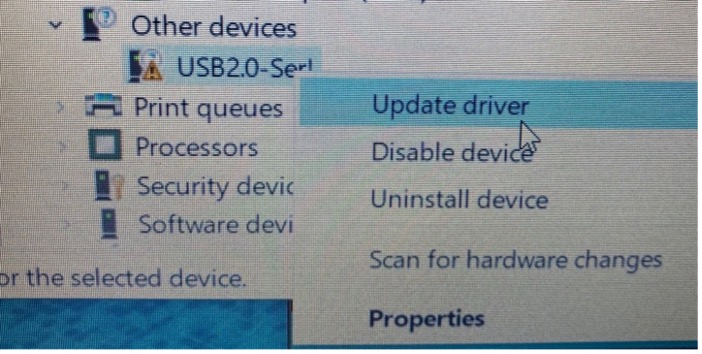
We have seen some Windows 10 computers without the CH340 USB driver. If you encounter this problem and the Device Manager shows you the warning in Fig. 63(a), then the first thing to try is updating the driver. Right-click on “USB2.0-Ser!” and choose “Update driver” (Fig. 63(b)). Then choose “Search automatically for updated driver software”.

Fig. 63 Some Windows computers lack the CH340 USB driver.
a |
b |
|---|---|
|
|
If Windows reports that “Windows has successfully updated your drivers” then you should now be able to connect to the Arduino Nano. On the other hand, if Windows reports that “Windows was unable to install your USB2.0-Ser!”, then the How to Install CH340 Drivers page at sparkfun.com will guide you through manually downloading the driver and installing it.
Windows 11
We have seen problems with Windows 11 and Arduino Nano Clones, with error messages similar to:
avrdude: ser_open(): can't set com-state for "\\.\COM3"
As the staff at the EE Shop has worked to troubleshoot this, there were indications that the problem was with the Arduino IDE 2.1.0; if you see this problem with the Arduino IDE 2.1.1, please let us know. Similarly, if you see this problem with PlatformIO, please let us know.
A fix that seems to work is to install the latest CH340/341 drivers from https://oemdrivers.com/usb-ch340 :
When you download and un-ZIP this package, you end up with folders containing .INF and other files. A common way to upgrade Windows device drivers is to select the device in Device Manager, tell it to update drivers and click on the option to browse your computer for the drivers. Usually you select the directory containing those files and Windows uses them. I found that when I tried this Windows insisted “no, the drivers already installed are the best.”
However this driver package also includes a couple executable programs that you just run to install the driver, and that works. (One in the main folder, one in the “W1X” folder. As far as I can tell they do the same thing.)
Finally:
On Windows 11, the first time after launching the IDE, your code should compile and upload with no complaints. But your next upload will fail …. UNLESS you unplug the Nano from the computer, letting it’s COMx port “go away”, then plug it back in so Windows and the IDE “rediscover” it. (The IDE immediately picks up using the same port settings when you plug it in.) And then you can upload another sketch. This is inconvenient but not majorly so, considering the payoff is that uploads can be depended upon to work when you do this.
MacOS
Sparkfun’s How to Install CH340 Drivers page also has instructions for installing the driver on MacOS; however, we are not aware of any students needing to manually install the CH340 driver on MacOS.
Linux
Sparkfun’s How to Install CH340 Drivers page also has instructions for installing the driver on Linux; however, we are not aware of any students using Linux personal laptops in this course.
Other Uploading Issues
Arduino’s Troubleshooting Guide has some suggestions.
Does a soft reboot or a hard reboot fix it?
Try pressing the RESET button on the Arduino Nano and then re-attempt the upload.
Sometimes unplugging the USB cable and plugging it back in fixes the problem.
Do you have the right COM port (Windows) / TTY port (MacOS/Linux) selected?
- Windows:
The Troubleshooting Guide recommends disconnecting your Arduino Nano and reconnecting it, then selecting whichever COM port appears.
- MacOS:
From the command line, type
ls /dev/tty.*. If there is only one port that starts with/dev/tty.usbserialthen that is the one you want. For example:% ls /dev/tty.* /dev/tty.BLTH /dev/tty.Bluetooth-Incoming-Port /dev/tty.usbserial-141330
In this case, you would choose
tty.usbserial-141330. If there are more than one port that starts with/dev/tty.usbserialthen unplug your Arduino Nano and reconnect it, then selecting whichever TTY port appears.- Linux:
(note: I haven’t tested this with Linux – I would think that
ls /dev/tty[AU]*would work similarly to the MacOS solution, looking for/dev/ttyUSBnnor/dev/ttyACMnn, but if Linux “remembers” connections and they don’t go away, then there seems to be a common internet solution ofdmesg | grep ttyand selecting the tty device with the most-recent timestamp.)
Do you have the right bootloader selected?
In the Arduino IDE, go to the Tools ⟶ Processor menu, and select “ATmega328P” for the “new” bootloader, or “ATmega328P (Old Bootloader)” for the “old” bootloader.
In PlatformIO, if you are using the platform.ini provided in a CSCE 231 assignment, then select the “env:nanoatmega328new” environment for the “new” bootloader, or the “env:nanoatmega328old” environment for the “old” bootloader.
Otherwise, in platform.ini, set your board’s
boardenvironment variable:board = nanoatmega328newfor the “new” bootloader, orboard = nanoatmega328for the “old” bootloader.
Is some other software on the host computer connected to the COM port (Windows) / TTY port (MacOS/Linux)?
If you’re using PuTTY (on Windows), Screen (on MacOS or Linux), or some other serial terminal emulator to interface with your Arduino Nano, then you need to disconnect your serial terminal emulator before uploading firmware to the microcontroller.
(If you’re using the Arduino Serial Monitor or the PlatformIO Serial Monitor, this shouldn’t be an issue since those integrated environments disconnect the Serial Monitor from the port before attempting an upload.)