MAX7219-driven Seven-Segment Display
The MAX7219 is “serial input/output common-cathode display drivers that interface microprocessors (µPs) to 7-segment numeric LED displays of up to 8 digits, bar-graph displays, or 64 individual LEDs.” You can readily find MAX7219-driven 8-digit 7-segment display modules for a couple of dollars online. The mapping of bits to LEDs for this application is well-defined in the datasheet, and once the display module is properly connected to your microcontroller board, the CowPi_stdio library should work with it without any customization. The only “gotcha” (and this really is beyond the scope of the library) is that the MAX7219 is strictly a 5V device (with reasonable allowances), so if your microcontroller board outputs 3.3V for logic high then you will need a “level converter” in your circuit.
The 8-digit 7-segment display modules are simple enough that if you opt not to scroll the text then they have the least-compelling argument for a file stream. Indeed, I used to have students produce the bit vectors for hexadecimal digits on 7-segment displays as a warmup exercise. That mastered, requiring that a program display text was more an exercise in tedium than learning anything new. Bypassing that tedium is why you would use this library with these display modules. (That, and perhaps you want scrolling text.)
Discussion
Scrolling vs Non-Scrolling
If you need a steady display, such as for a calculator, then you should use the non-scrolling option. In C++, use
cowpi_configure_seven_segment_display()
to generate the appropriate cowpi_display_module_t variable. In C, use
(cowpi_display_module_t) {.display_module = SEVEN_SEGMENT}
without specifying the scroll (words-per-minute) rate.
If the message can be transient, and if you need more than eight characters, then you should use the scrolling option. In C++, use
cowpi_configure_scrolling_seven_segment_display(scroll_rate)
to generate the appropriate cowpi_display_module_t variable. In C, use
(cowpi_display_module_t) {.display_module = SEVEN_SEGMENT, .words_per_minute = scroll_rate}
The scroll rate is expressed as an approximate number of words per minute that should pass along the display.
Font
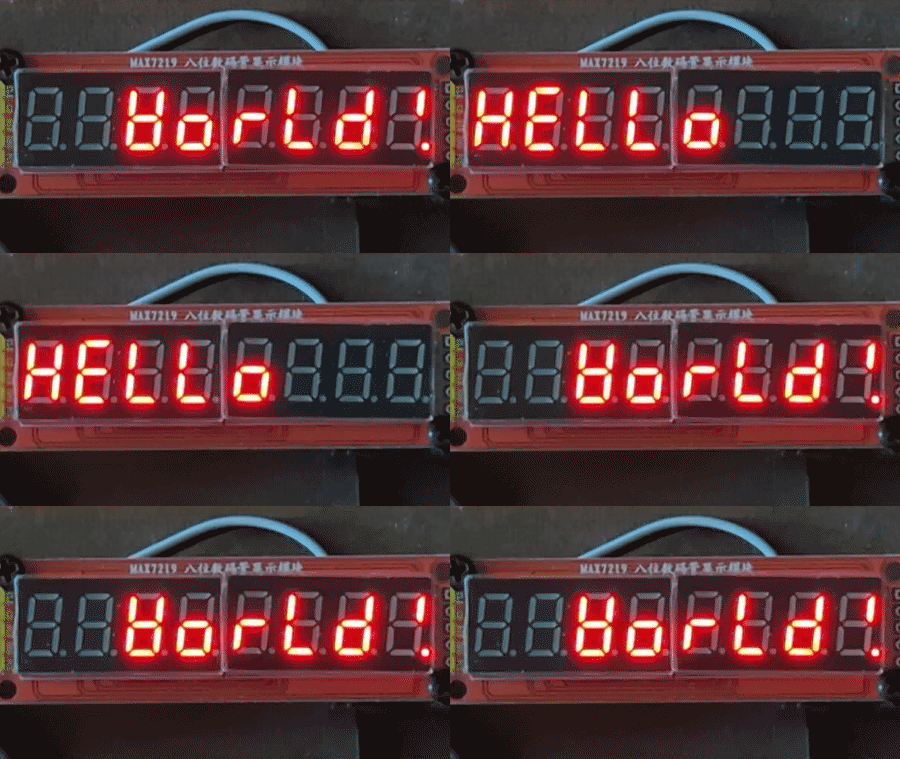
While many characters can be displayed recognizably, if imperfectly, on a 7-segment display, others leave much to be desired. When you run the example program, you will notice that the ‘W’ in “Hello World” bears almost no resemblance to the Latin letter.
ASCII Control Characters
The non-scrolling option for the 8-digit/7-segment display allows some of the ASCII control characters to be meaningfully implemented (though it having only one row does limit the sensibility of vertical-motion characters). The unidirectional nature of the scrolling text forces us to ignore left-motion characters.
|
|
|
|
|
|
|
0x1B (gcc |
0x1F |
|
|---|---|---|---|---|---|---|---|---|---|
ASCII |
bell (alarm) |
backspace |
horizontal tab |
line feed (newline) |
vertical tab |
form feed (newpage) |
carriage return |
escape |
delete |
7-segment display
(no scroll)
|
ignored |
shifts cursor left;
next character is
inclusive-ORed with
existing character
|
shifts cursor right |
clears remaining line,
then
\r |
places cursor in left column |
places cursor in left column |
places cursor in left column |
next byte specifies a segment pattern;
|
\b, then clearsexisting character
|
7-segment display
(scrolling)
|
ignored |
ignored |
inserts four spaces |
allows line to clear |
|
|
|
next byte specifies a segment pattern;
|
ignored |
Literal Bytes
The file stream for a 7-segment display supports sending literal bytes to be displayed.
When the library finds \x1B (ASCII ESC, gcc \e), then the next byte (and only the next byte) will be sent as a segment pattern.
MAX7219 datasheet, Table 6, describes the mapping of bits to segments.
A blank digit is best handled with a “space” character (ASCII 0x20, ' ').
Note
If you include \x00 in the format string, then fprintf will interpret it as a terminating NUL.
Communication Protocol
The MAX7219 natively supports SPI. (Technically, there is a small deviation, but not one that you’ll notice.) At a minimum, you need to specify the pin used to indicate which peripheral should latch the data in. In C++, use
cowpi_configure_spi(the_select_pin)
to generate the appropriate cowpi_display_module_protocol_t variable. In C, use
(cowpi_display_module_protocol_t) {.protocol = SPI, .select_pin = the_select_pin}
By default, the data pin and the clock pin are those used by the SPI hardware, even if you use the library’s bit-banged SPI implementation. If you wish to use other pins, then specify them with
cowpi_configure_spi(the_select_pin, the_data_pin, the_clock_pin)
in C++, or
(cowpi_display_module_protocol_t) {
        .protocol = SPI,
        .data_pin = the_data_pin,
        .clock_pin = the_clock_pin,
        .select_pin = the_select_pin}
in C.
Custom Transmission Function
Todo
Describe custom transmission function for MAX7219
Example
max7219_seven_segment
The max7219_seven_segment example demonstrates both the scrolling and non-scrolling option. In general, we strongly advise against having multiple file streams pointing to the same display module, as the resulting behavior would be undefined and would unlikely be what you intended. In this particular case, we get away with it by waiting for the scrolling display to finish before using the non-scrolling file stream.
FILE *no_scroll_display, *scrolling_display;

void setup(void) {
    // The C++ approach
    no_scroll_display = cowpi_add_display_module(
            cowpi_configure_seven_segment_display(),
            cowpi_configure_spi(SS, MOSI, SCK)
    );
    scrolling_display = cowpi_add_display_module(
            cowpi_configure_scrolling_seven_segment_display(30),
            cowpi_configure_spi(SS, MOSI, SCK)
    );

    // The C approach
    /*
    no_scroll_display = cowpi_add_display_module(
            (cowpi_display_module_t) {
                    .display_module = SEVEN_SEGMENT
            },
            (cowpi_display_module_protocol_t) {
                    .protocol = SPI,
                    .data_pin = MOSI,
                    .clock_pin = SCK,
                    .select_pin = SS
            }
    );
    scrolling_display = cowpi_add_display_module(
            (cowpi_display_module_t) {
                    .display_module = SEVEN_SEGMENT,
                    .words_per_minute = 30
            },
            (cowpi_display_module_protocol_t) {
                    .protocol = SPI,
                    .data_pin = MOSI,
                    .clock_pin = SCK,
                    .select_pin = SS
            }
    );
    */

    fprintf(scrolling_display, "Hello World!\n");
    // normally, using two file streams on the same display module can have
    // undesired effects, but in this simple example, we should be okay if
    // we wait until the scrolling text is gone
    delay(8000);
}

void loop(void) {
    // On AVR architectures, you can use `fprintf_P` with `PSTR` to put the
    // format string in flash memory, if you want to
#ifdef __AVR__
    fprintf_P(no_scroll_display, PSTR("Hello\n"));
#else
    fprintf(no_scroll_display, "Hello\n");
#endif //__AVR__
    delay(750);
    fprintf(no_scroll_display, "%8s\n", "World!");
    delay(750);
}